Install
- Install CMS Duplicator from the Webflow Marketplace and choose the sites it can use.
- Webflow opens the Designer with the app launched. If it doesn't, open your site in the Designer, press E (Apps panel) and click CMS Duplicator.
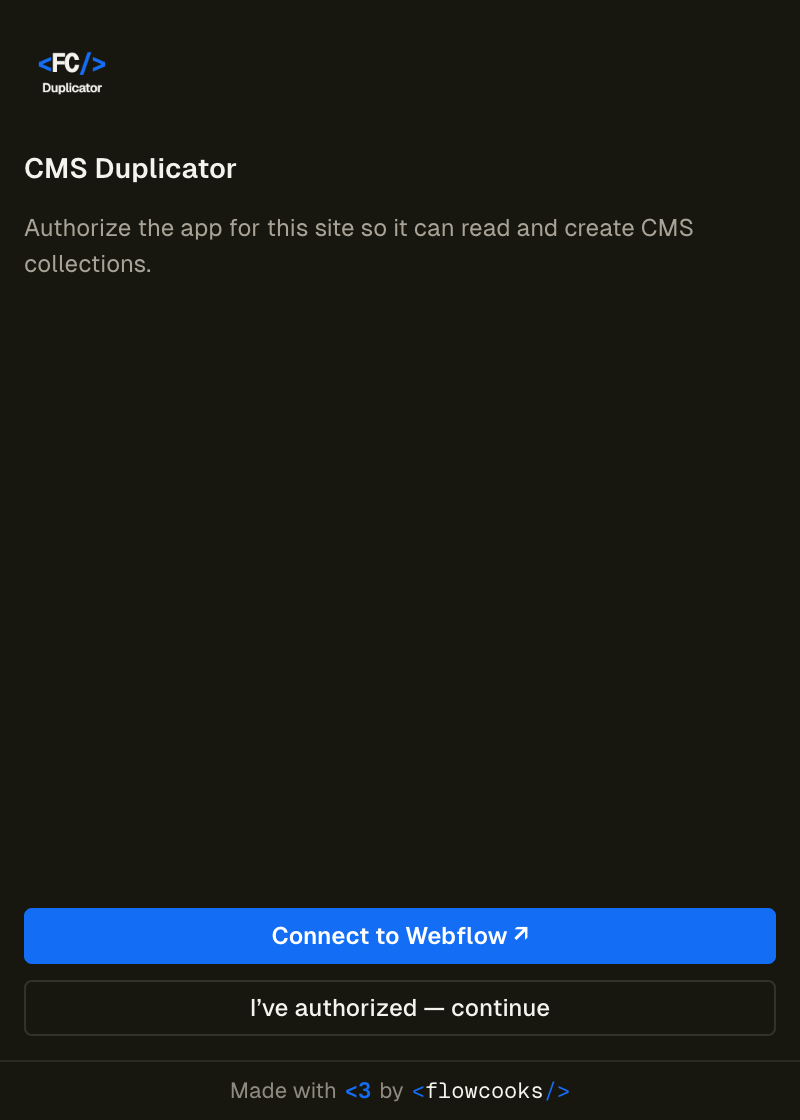
If the panel shows Connect to Webflow, the site isn't authorized yet:
- Click Connect to Webflow ↗ and approve access for the site.
- Go back to the Designer and click I’ve authorized — continue.
Duplicate a collection on the same site
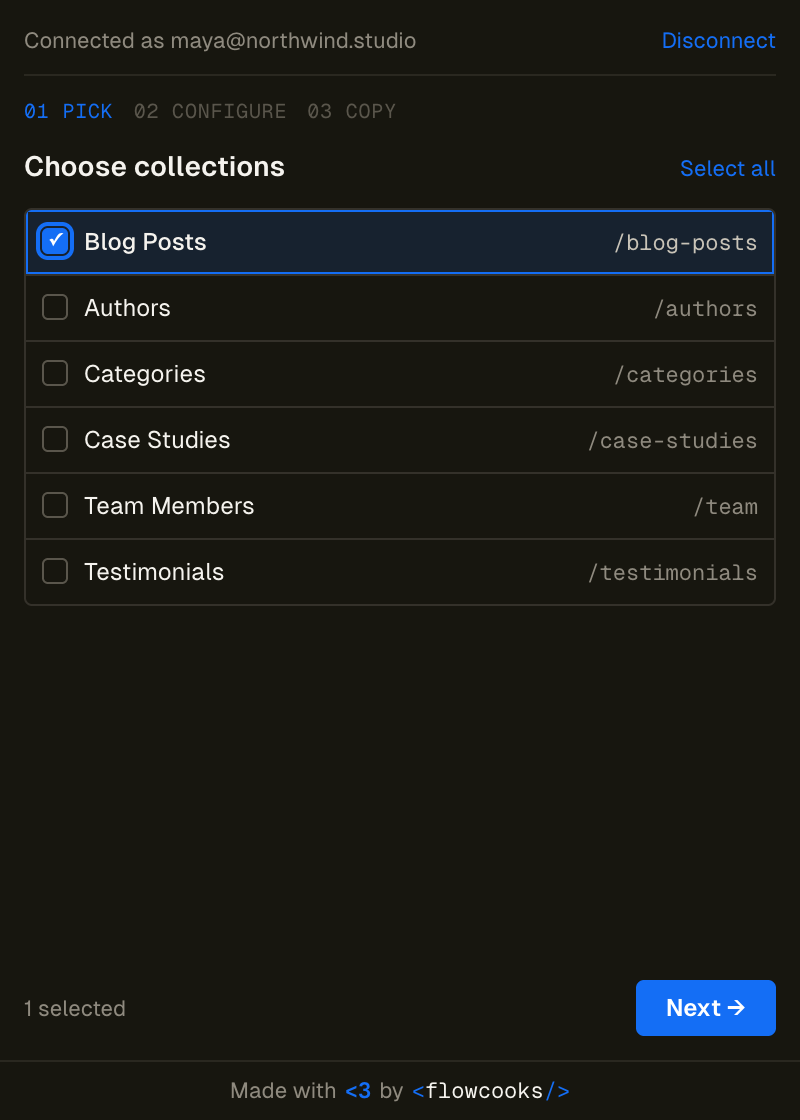
- Tick the collection under Choose collections and click Next →.
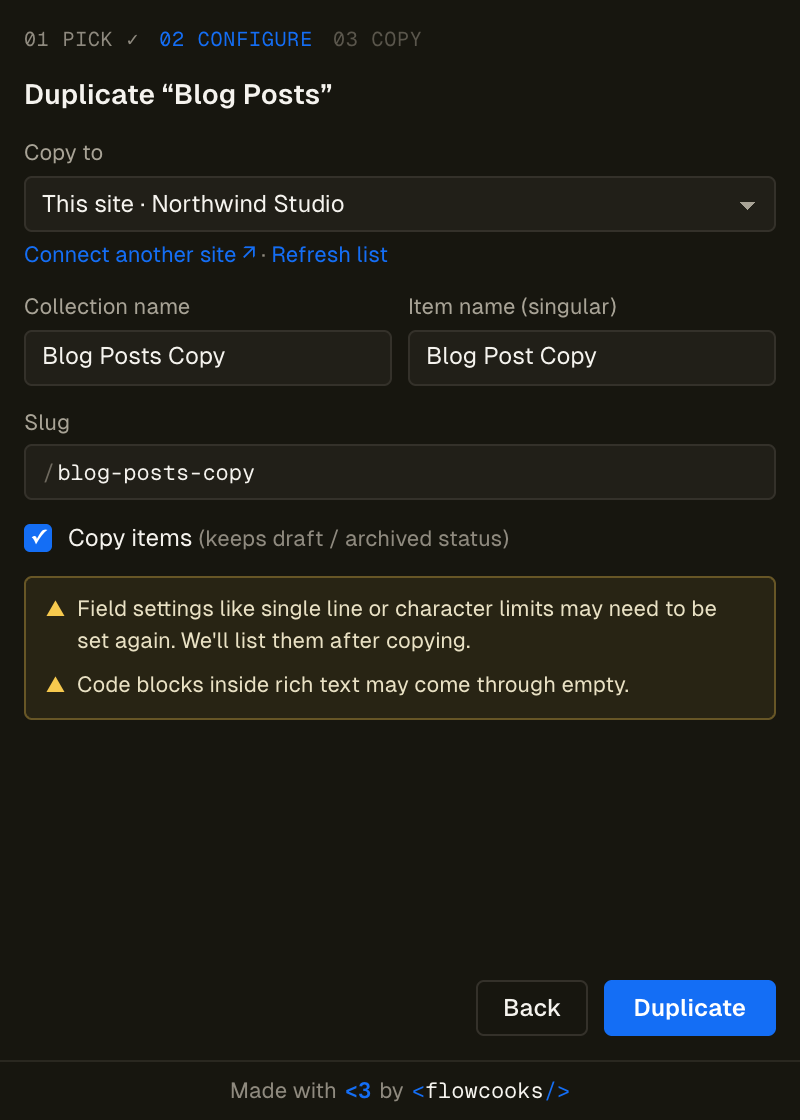
- Leave Copy to on This site. The copy is named “<Collection> Copy” by default; change the Collection name, Item name (singular) or Slug if you like.
- Leave Copy items ticked to copy every item, or untick it to copy the fields only.
- Read any warnings, then click Duplicate.
- When you see Copy complete, the new collection is in the CMS panel. If it isn't there yet, refresh the Designer.
Copy collections to another site
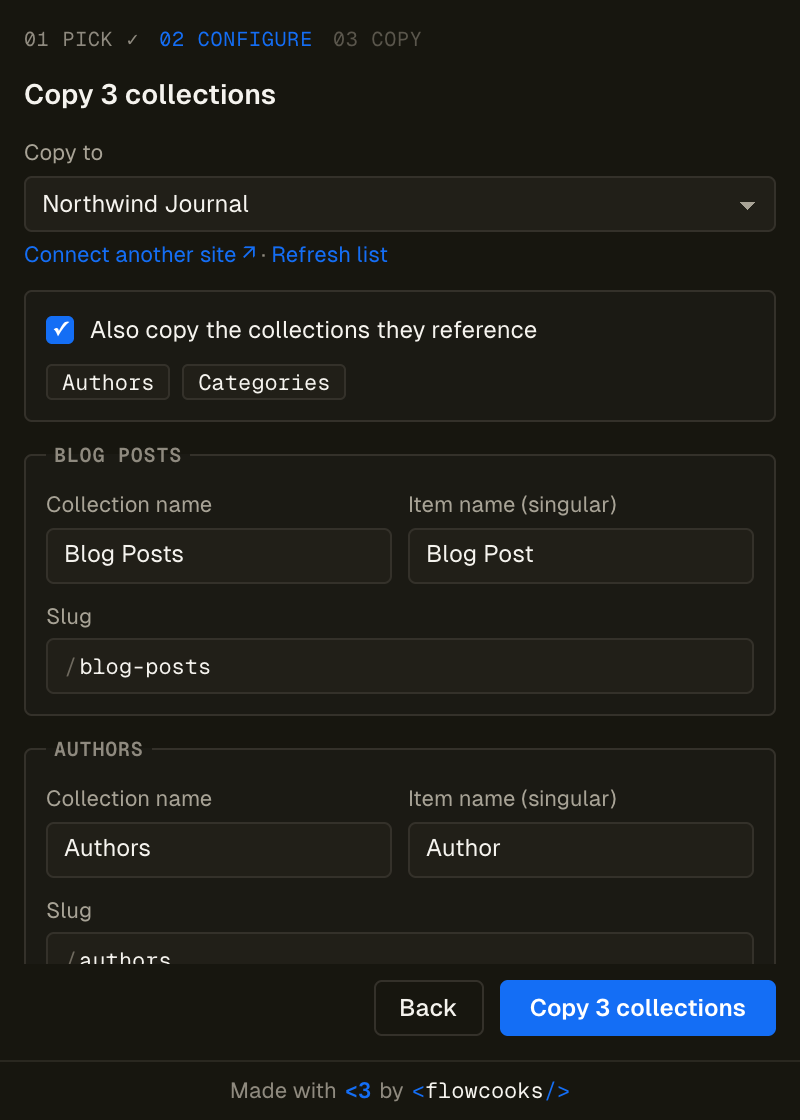
- On the configure step, click Connect another site ↗, approve access for the other site, then click Refresh list.
- Pick the site under Copy to.
- Leave Also copy the collections they reference ticked, so reference fields have something to point at on the new site.
- Check the names and slugs. On another site the original names are kept unless they'd clash with a collection that's already there.
- Click Copy collection (or Copy N collections). When it's done, Open <site> ↗ opens the other site in the Designer.
You can only copy into sites you connected yourself.
What carries over
| Carried over | Not carried over |
|---|---|
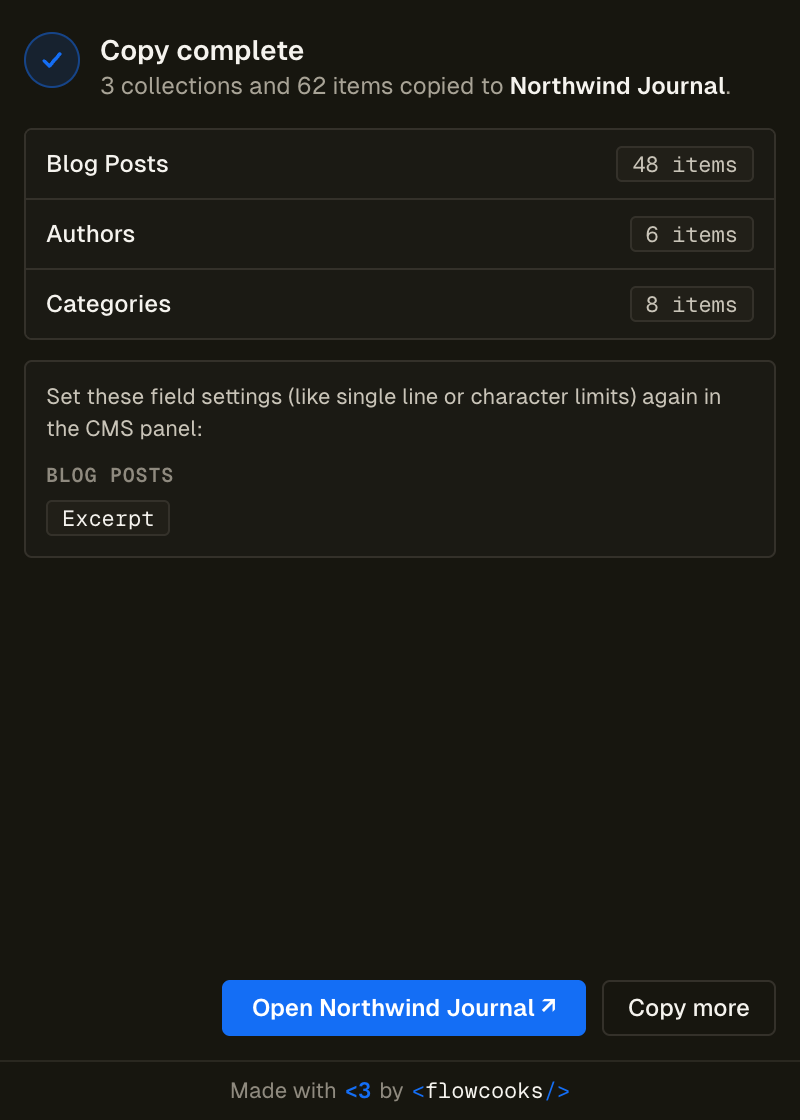
| Collection name, singular name and slug (as you set them) | Field settings like single line or character limits (listed after copying, set them again in the CMS panel) |
| Fields: text, rich text, images, files, links, numbers, dates, switches, colors, emails, phones, videos, dropdowns, references | Translations (only the main language is copied) |
| Help text and required settings | Code blocks inside rich text may come through empty |
| Items, with draft and archived status | Files over 4 MB, when copying to another site |
| References between copied collections, pointing at the new copies | Required references between copied collections become optional |
| Dropdown choices, matched by name | Field types the API can't create (listed before you copy) |
Copied items go live the next time you publish the site.
Progress and results
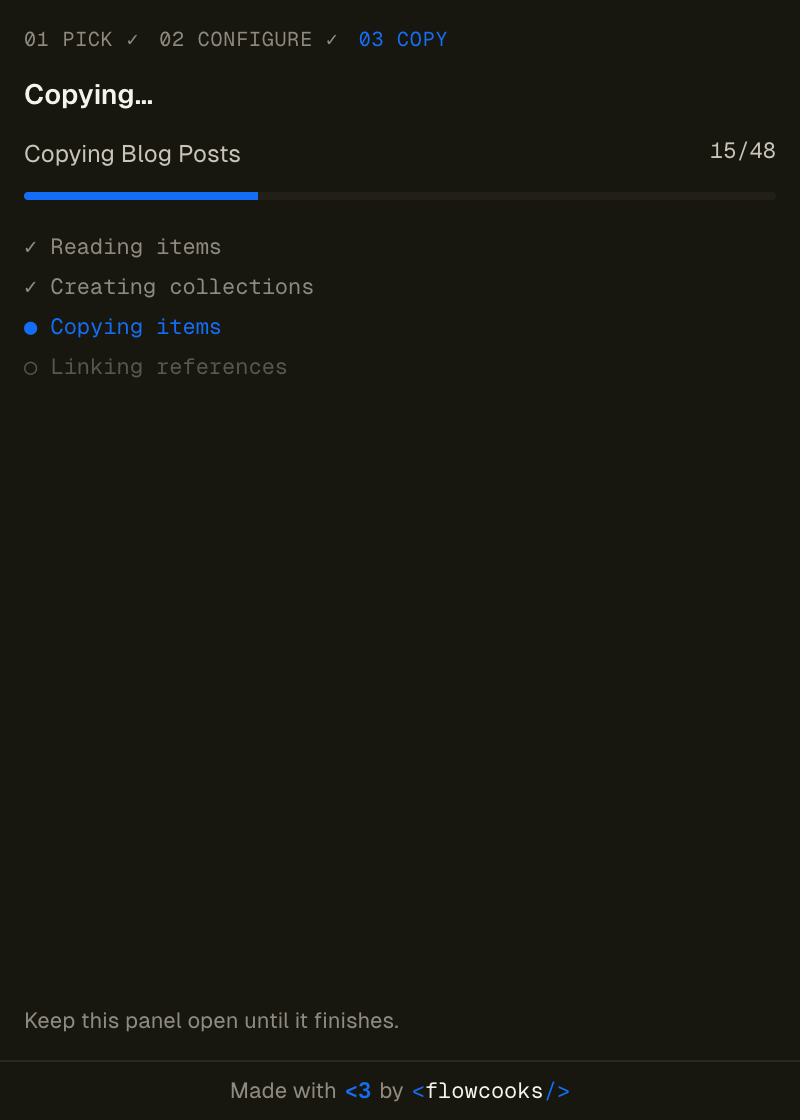
The progress screen shows each stage: Reading items, Creating collections, Copying items and Linking references. Keep the panel open until it finishes.
Copy complete lists every copied collection with its item count. If some field settings didn't carry over, they're listed under “Set these field settings… again in the CMS panel”.
If a copy fails
The most common cause is your site plan's CMS limit on collections or items. The app shows the error and, if it created anything, offers:
- Delete partial copy: removes the collections this copy created. Your original collection is never touched.
- Keep it and go back: leaves the partial copy in place.
Disconnect and remove
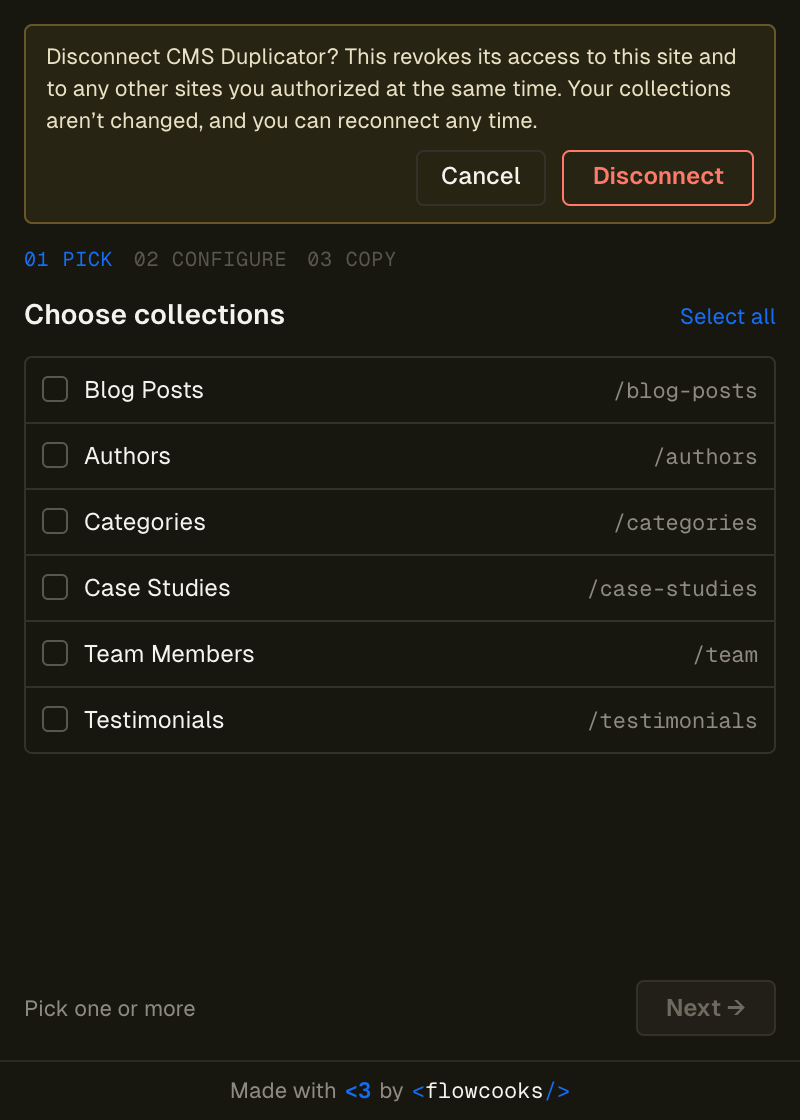
- On the first screen, click Disconnect (top right).
- Click Disconnect again to confirm.
This revokes CMS Duplicator's access to the site, and to any other sites you authorized at the same time, and deletes the stored access token. Your collections and copies aren't changed. Only the person who connected a site can disconnect it.
You can also remove the app in Webflow under your site's settings → Apps & Integrations.
Troubleshooting
- “Couldn’t connect” in the panel: reload the Designer. If it keeps happening, contact support.
- “This site isn’t connected to your account”: connect that site with Connect another site ↗, as the person who'll use it.
- “A collection with this name already exists” / “This slug is already in use”: pick a different name or slug.
- “Authorization expired” after approving: start again from the extension.
Email adrian@flowcooks.com or see Support.